Ring Alarm systems have become a popular choice for homeowners looking to secure their properties without the hassle of professional installation or long-term contracts. Whether you’re upgrading your home security or installing your first system, understanding how to disarm your Ring Alarm quickly and reliably is essential, especially in situations where you need to turn it off without triggering a false alarm. This guide walks you through every method available to disarm your Ring Alarm, from the mobile app to voice commands, plus troubleshooting tips for when things don’t go as planned. You’ll find clear, actionable steps that keep you in control of your security system.
Table of Contents
ToggleKey Takeaways
- The Ring Alarm app offers the most flexible disarming method, allowing you to disarm your system remotely within 30 seconds using account PIN or biometric verification.
- Physical keypads provide the fastest local disarming option when home, requiring only your four-digit master code and taking about 10 seconds to complete.
- Voice control through Alexa is convenient for hands-free disarming, but Ring recommends it as a secondary method rather than your primary disarming approach due to security concerns.
- If you forget your disarm code, the Ring App lets you regain immediate control using your account credentials, then reset your code through Settings > Users & Codes.
- Maintaining multiple disarming methods and keeping devices charged and connected ensures you always have a reliable backup if one method fails.
Understanding Your Ring Alarm System
Before diving into disarming methods, it helps to know what you’re working with. Ring Alarm is a self-installed, wireless security system that includes a hub (the main control panel), door and window sensors, motion detectors, and optional keypads. The hub is the brain of the operation, it connects to your Wi-Fi and communicates with all the sensors.
Your Ring Alarm operates in two primary modes: armed and disarmed. When armed, the system monitors all entry points and motion sensors. When disarmed, the sensors stop actively monitoring, but they remain part of the system. Understanding this distinction matters because disarming is different from turning off the system entirely.
Most Ring Alarm systems use a four-digit numeric code as your primary disarming method. Some households add multiple user codes, which is useful if family members or caregivers need access. You’ll want to know your master code before attempting disarming, if you don’t, you’ll need to use your primary account (usually via the app) to regain control. The system also supports biometric disarming (fingerprint or face recognition) on compatible devices, and voice commands through Alexa-enabled devices. Each method offers convenience in different situations.
Disarming Through The Ring App
The Ring App is arguably the most straightforward disarming method, especially if you’re away from home or your keypad isn’t easily accessible. The app connects directly to your Ring Alarm hub over your home Wi-Fi or cellular data.
Using The Mobile App On Your Smartphone
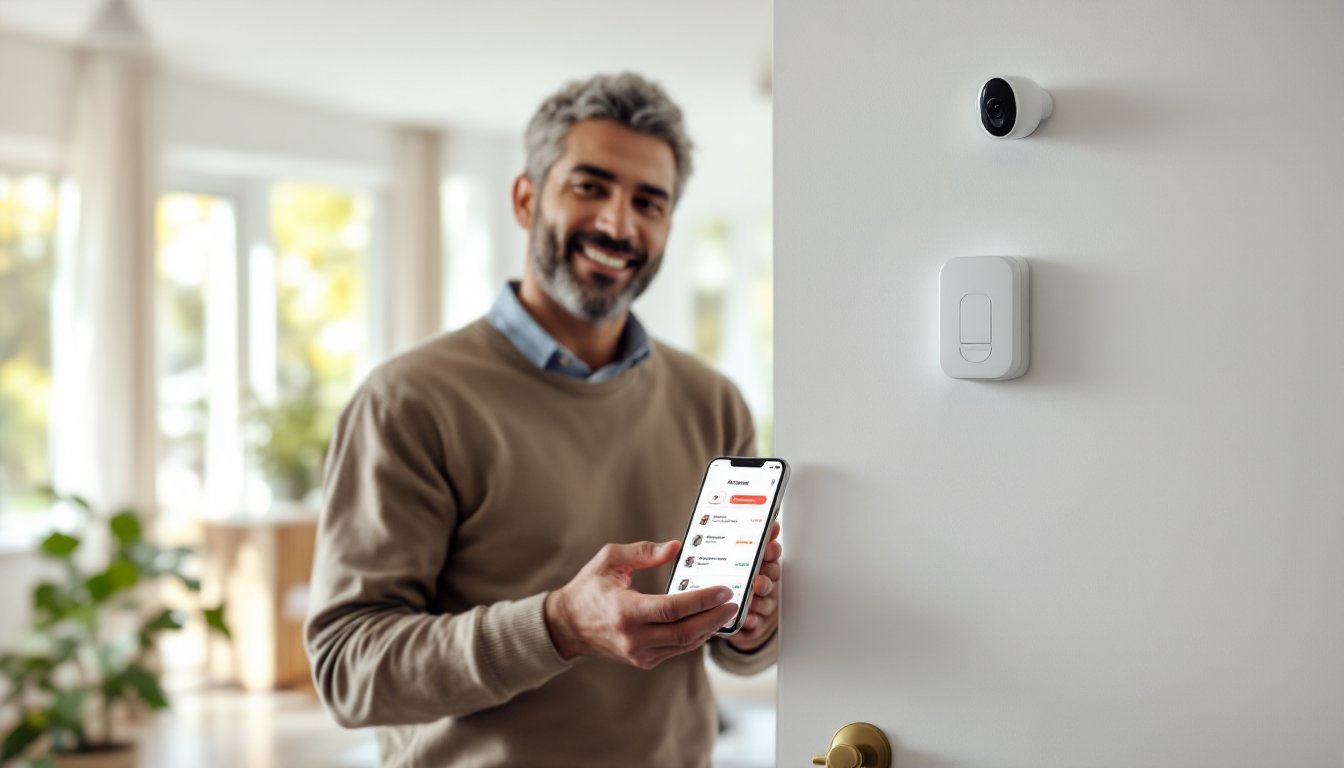
Open the Ring App on your iOS or Android device and log in with your account credentials. Once you’re in, tap the Alarm Hub or Security tab (depending on your app version) to access your system’s status. You’ll see a visual representation of your alarm’s current state, armed, disarmed, or in a specific mode like “Home” or “Away.”
Look for the Disarm button on the main screen. This button is typically color-coded and clearly labeled. Tap it to begin the disarming process. The app will prompt you to confirm your action, this second step prevents accidental disarming. You’ll be asked to verify your identity by entering your Ring account PIN or using biometric authentication (fingerprint or face ID). For added security, Ring requires this secondary verification, which is a solid practice that keeps unauthorized users from disarming your system remotely.
Once confirmed, the system disarms within a few seconds. You’ll see a notification confirming the disarm, and the app displays your system as “Disarmed” with a timestamp. The entire process takes less than 30 seconds. A setup guide like the one on Digital Trends about Ring Alarm setup provides additional context on hub connectivity, which ensures your app can communicate reliably.
If you experience a delay, check that your phone has an active internet connection and that your hub is online. A brief lag is normal, but if disarming takes more than a minute, restart your router and hub, then try again.
Disarming Using The Keypad
The physical keypad is your fastest local disarming method when you’re home. Ring sells optional keypad accessories that you mount near your entry door. These plug-in or battery-powered devices let you disarm without reaching for your phone.
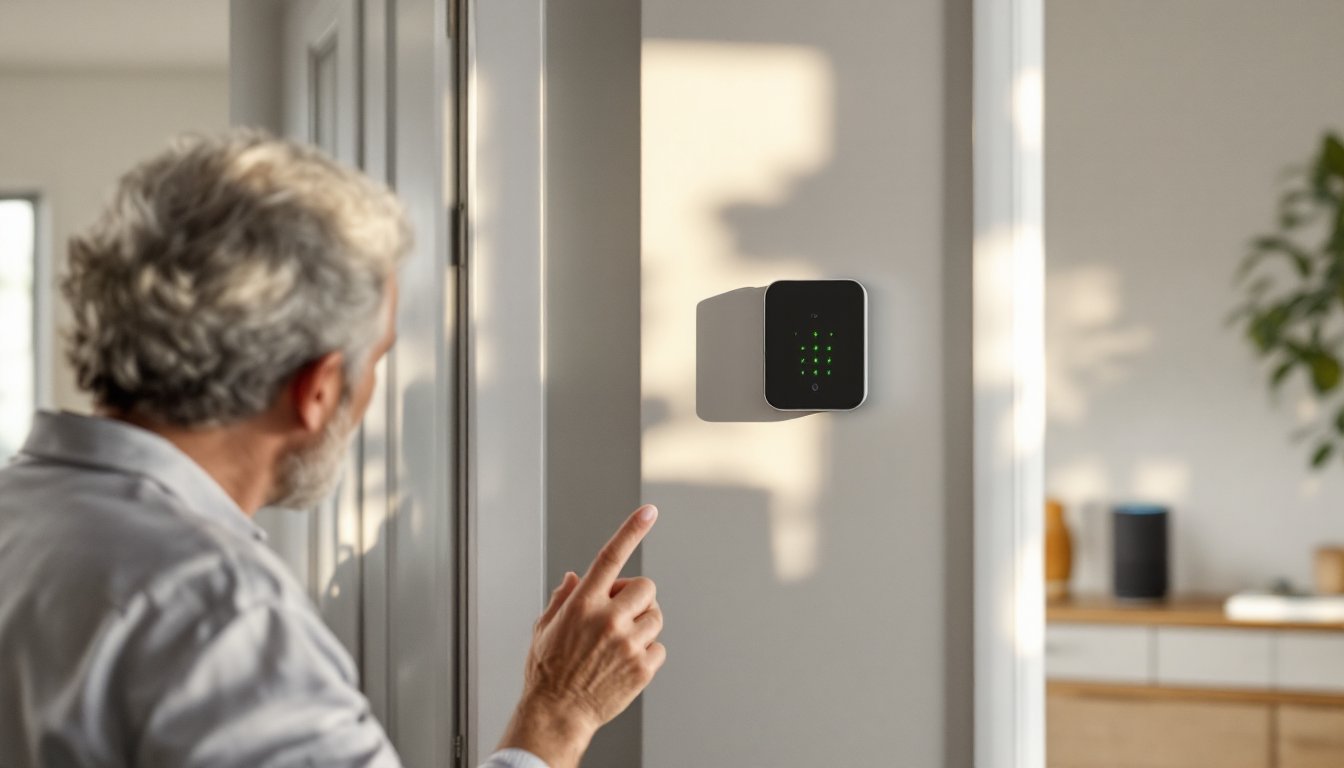
Approach the keypad and enter your four-digit master code using the number buttons. Press each digit clearly, the keypad beeps softly with each press (volume is adjustable). After entering the last digit, press the checkmark or confirm button (typically marked with a green icon or “OK”). The keypad will display “Disarmed” or flash a green light, confirming the action. The entire process takes about 10 seconds.
If you enter the wrong code, the keypad displays an error, usually a red light or “Error” message, and the system remains armed. You can try again immediately, there’s no lockout period for multiple attempts on your own keypad. But, if someone else enters an incorrect code repeatedly (say, five times), many systems log this as a potential intrusion attempt.
Keypads are battery-powered (usually AA or AAA batteries) or plug directly into a wall outlet. Check battery levels regularly in the Ring App under device settings. A low or dead battery means the keypad won’t function, defeating its convenience. Consider installing the keypad in a spot that’s convenient for you but not obvious to potential intruders. Next to your main entry door works, but above the door frame or in a side vestibule is even more secure.
Voice Control And Smart Home Integration
If you’ve integrated your Ring Alarm with Amazon Alexa, voice disarming is available. This method is incredibly convenient if your hands are full, say you’re carrying groceries or have your dog on a leash.
To use voice control, first ensure your Ring Alarm is linked to your Alexa account. Open the Alexa App, navigate to Devices, and confirm that your Ring Alarm hub appears in the list. Then, simply say to any Alexa-enabled speaker (Echo Dot, Echo, etc.) in your home: “Alexa, disarm my Ring Alarm.” The system will ask you to confirm by providing your four-digit code out loud. Speak your code clearly and in numerical order, if Alexa misunderstands, it will ask you to repeat.
Voice disarming comes with a caveat: Ring doesn’t recommend relying on it as your primary disarming method for security reasons. Voice commands can be misheard, and Alexa devices can be triggered by conversations about alarms. Many users prefer using voice control only when they’re home and can confirm the action immediately. For away-from-home disarming, stick with the app or keypad.
If you own other smart home devices, like Google Nest or Apple HomeKit, Ring Alarm integration is limited. At present, Google Home doesn’t support Ring Alarm disarming through voice, and Apple HomeKit support requires workarounds through third-party automation tools. This is worth knowing if you’re building a broader smart home ecosystem. The Tom’s Guide article on arming and disarming explores these integrations in detail.
Troubleshooting Common Disarming Issues
Even straightforward systems sometimes hiccup. Here are the most common problems and practical fixes.
The app won’t connect: Check your phone’s internet connection and confirm your home Wi-Fi is working. Restart the Ring App, and if it persists, restart your router. If your hub is offline, the app can’t send disarm commands. Check that your hub has power and is within range of your Wi-Fi. Wait a few minutes for the hub to reconnect after a power reset.
The keypad doesn’t respond: Press the buttons more firmly, sometimes a light touch doesn’t register. Check the battery level: if it’s near zero, replace batteries immediately. If the keypad is mounted near metal fixtures or appliances, move it slightly, Wi-Fi interference can affect battery-powered models. Test the keypad while standing directly in front of it.
Disarming is slow or times out: Ring’s servers are normally responsive, but brief lags during high-traffic times are possible. Poor Wi-Fi signal is the most common culprit, move closer to your router or improve coverage with a mesh Wi-Fi system. A hub that’s too far from the router (more than 40-50 feet with obstacles) may struggle. If slowness is chronic, contact Ring Support and ask them to check your hub’s connection strength.
What To Do If You Forgot Your Code
If you’ve forgotten your disarm code, don’t panic, you haven’t lost access to your system. Use the Ring App to regain control. Open the app, navigate to your Alarm Hub settings, and look for “Disarm” or “Manage Codes” options. Tap “Disarm” directly from the app using your account PIN or biometric verification. The app overrides your keypad code, so you can disarm immediately.
Once disarmed, go to Settings > Users & Codes in the Ring App to reset your four-digit code. Enter a new code you’ll remember, avoid simple sequences like 1-2-3-4 or birthdates that others might guess. Write it down somewhere secure, like a password manager or locked drawer. If you have other household members with access, update their codes too so everyone has the new number.
If you’ve lost access to your account itself (email or password forgotten), visit Ring’s account recovery page to reset your login. Once you’re back in, the app disarming method will work, and you can set new codes. This process takes a few minutes but restores full control.
Final Thoughts
Disarming your Ring Alarm doesn’t have to be complicated. Whether you prefer the speed of a keypad, the flexibility of the app, or the hands-free convenience of voice control, each method gets the job done securely. The key is choosing the approach that fits your lifestyle and ensuring you maintain reliable backups, if one method fails, you’ve always got another option. Keep your codes updated, ensure your devices stay charged and connected, and you’ll never be locked out of your own system.